
You pull up your P&L and the food cost line just doesn’t add up. Your team counted everything. Invoices are entered. And yet Restaurant365 is telling you a story that doesn’t match reality like negative inventory, wild variance, alerts nobody’s touched in weeks.
R365 inventory errors almost never come from one big mistake. They stack up quietly, from small setup issues and skipped steps, until your COGS is basically a guess dressed up as a report. And once that happens, every decision built on top of it — pricing, ordering, staffing is standing on shaky ground.
Below, we’ll walk through what’s actually causing these errors and how to fix them fast, without tearing your whole instance apart or starting from scratch.
4 Common Causes of R365 Inventory Errors
Here are the most common reasons for errors in R365 Inventory…
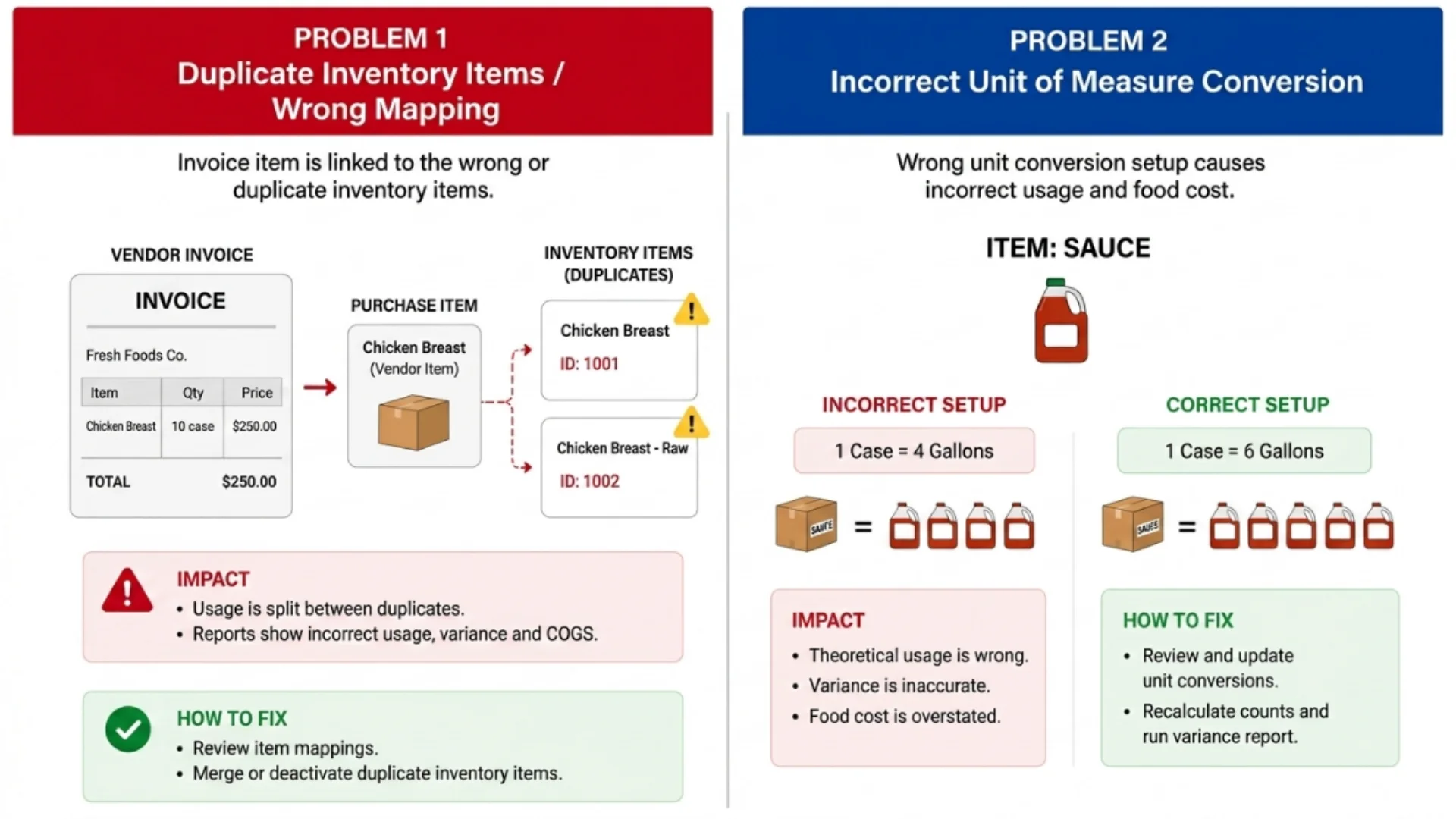
Mis-Linked Purchase Items and Inventory Items
Every invoice line in R365 flows through a Vendor Purchase Item, which gets mapped to an Inventory Item and tied to a Receive Unit. That chain works fine — until it doesn’t.
A vendor swaps a case size, someone adds a new item mid-shift without checking if it already exists, or a purchase item gets linked to the wrong inventory item entirely. One bad link doesn’t stay contained. It ripples outward and can trigger several alerts at once, because everything downstream, like usage, cost, and variance, is now calculated off a broken reference point.
This is also how you end up with duplicate inventory items that quietly split your usage data in two. One vendor’s chicken breast gets mapped to “Chicken Breast”, another vendor’s identical product gets mapped to “Chicken Breast – Raw”, and now neither record reflects true usage. Nobody notices for months because both items still show reasonable-looking numbers on their own, it’s only when you try to reconcile total usage against total purchases that the split becomes obvious.
Unit of Measure Conversion Mistakes
This one’s sneaky because it doesn’t look wrong at a glance. Say a case of sauce actually converts to 6 gallons, but someone set the conversion at 4 during setup. Your invoice cost is correct, your count is correct, but your theoretical usage is now off on that item alone.
Because the recipe math and the purchasing math no longer agree on what a “unit” is. Multiply that across a few dozen items and your AvT variance stops meaning anything. It’s not telling you about waste or theft anymore. It’s telling you about a typo from six months ago that nobody caught.
The frustrating part is that this error type is invisible on the receiving side. Your invoice reconciles fine, your AP looks clean, and the count sheet looks normal too. It only shows up once you compare theoretical usage against actual usage, which is exactly why so many operators assume it’s a counting problem when it’s really a conversion problem sitting one layer deeper.
Skipped or Inconsistent Inventory Counts
R365’s whole variance engine depends on counts being taken the same way, every time. Count on a Tuesday one week and a Sunday the next, and you’re comparing two different sales periods against one inventory snapshot — the math was never going to line up. Same goes for counting before service one week and after service the next; you’re moving the goalposts without realizing it.
Skipping prepped items is just as common and just as damaging. If raw ingredients got turned into batch sauce or portioned proteins and nobody counted the finished product, R365 assumes that raw inventory simply vanished. It’ll show up as unexplained usage or shrinkage, when really it just moved from one shelf to another and got missed on the count sheet.
Ignored or Backlogged Inventory Alerts
R365 actually flags a lot of this for you on its own, on the Inventory Alerts page. The problem is what happens after, most teams glance at it, get busy running a restaurant, and let it sit. Alerts don’t resolve themselves, and they don’t stay isolated. A single unresolved linking error from month one is often still sitting there in month six, quietly corrupting every count and every AvT report that’s run since, because nothing in the setup ever got corrected upstream.
The longer a backlog sits, the harder it is to untangle, too. New alerts start layering on top of old ones, and it becomes genuinely difficult to tell which error caused which downstream symptom without going through them one at a time.
How to Fix R365 Inventory Errors Fast
Here are the solutions to your R365 Inventory Errors:
Work the Inventory Alerts Queue in the Right Order
Go to Setup, then the Alerts tab, this is the built-in repair log for your Inventory module, and it’s the fastest starting point most operators overlook. Don’t work top to bottom randomly. Fix Purchase Item, Inventory Item, and Receive Unit errors first, in that order. Those three usually sit upstream of everything else, so clearing them tends to wipe out a good chunk of the remaining alerts automatically instead of you chasing each one individually.
Once those three categories are clear, re-run the report or refresh the alerts page before touching anything else. You’ll often find the list has already shrunk on its own, which tells you exactly how much of your “error problem” was really just a handful of root-cause links.
Re-Link Vendor Purchase Items Correctly
For each flagged purchase item, check three things: is it mapped to the right inventory item, is the unit of measure correct, and does the receive unit conversion factor match what the vendor actually ships on the case or container? Pull the vendor invoice next to the R365 record and compare them line by line, don’t trust what’s already in the system just because it’s been there a while.
If you’re finding several of these at once, it’s usually not an isolated mistake, it’s a sign the underlying setup needs a real audit rather than a quick patch here and there. That’s exactly the kind of work our data cleanup and COGS repair service handles, when the errors go deeper than a few bad links you can knock out in an afternoon.
Reconcile Counts Against Your AvT Report
Before you assume a count was wrong, run the Actual vs. Theoretical report and pair it with Inventory Variance by Location to see whether the gap is growing, shrinking, or isolated to one site.
If the variance is climbing steadily across every location, that points to a setup issue — a bad conversion or link, the kind we covered above. If it’s isolated to one store, or swings unpredictably week to week, that’s more likely operational: over-portioning, waste that isn’t getting logged, or a count that genuinely got missed.
Those are two completely different fixes, and running both reports before you act saves you from chasing the wrong one. Building this check into a repeatable weekly habit is a lot of what falls under ongoing R365 support, since a one-time fix doesn’t stop the next round of errors from creeping back in a few months later.
When to Bring in Outside Help
If your alerts queue has months of backlog, you’re running multiple locations, or nobody on staff owns R365 full-time, DIY cleanup stops being realistic. That’s not a knock on your team — it’s just math. Untangling a year of mis-linked items and drifting variance takes focused hours most restaurant operators don’t have between prep, service, and payroll.
At that point it’s cheaper to fix it properly once through a focused data cleanup and COGS repair project, then keep it clean with ongoing R365 support than to keep losing hours chasing a moving target every period close, only to end up back in the same spot next quarter.
Take It As A Sign That System’s Been Running Without Maintenance.
It happens to almost every restaurant group eventually. The fix isn’t complicated in concept: clear your alerts in the right order, verify your links and unit conversions, count consistently, and check your AvT report before you blame a count.
What’s hard is finding the time to do it properly while you’re also running a restaurant. If your data’s too far gone for a quick pass, that’s what we’re here for.
Reach out to Restaurant Smith, and let’s get your inventory numbers back to something you can actually trust, and keep them that way going forward.
